How to Fix Mouse Double Clicking – The Ultimate Repair Guide
Key Takeaways
To fix mouse double clicking, start by adjusting the Double-click speed in your computer’s Mouse Settings. If that fails, try cleaning the switch with compressed air or updating your device drivers. For hardware-level issues, replacing the internal OMRON switches or increasing the debounce time in software usually solves the problem.
It can be incredibly frustrating to realize your hardware is acting up, so learning how to fix mouse double clicking is a essential skill for any PC user or gamer. You click once to select a file, and suddenly, two windows fly open. You try to fire a single shot in a game, and your weapon lets out a double burst. Before you toss your expensive peripheral into the trash, you should know that this is one of the most common mechanical and software-bound issues in computing. Most of the time, it is fixable with a few minutes of troubleshooting.
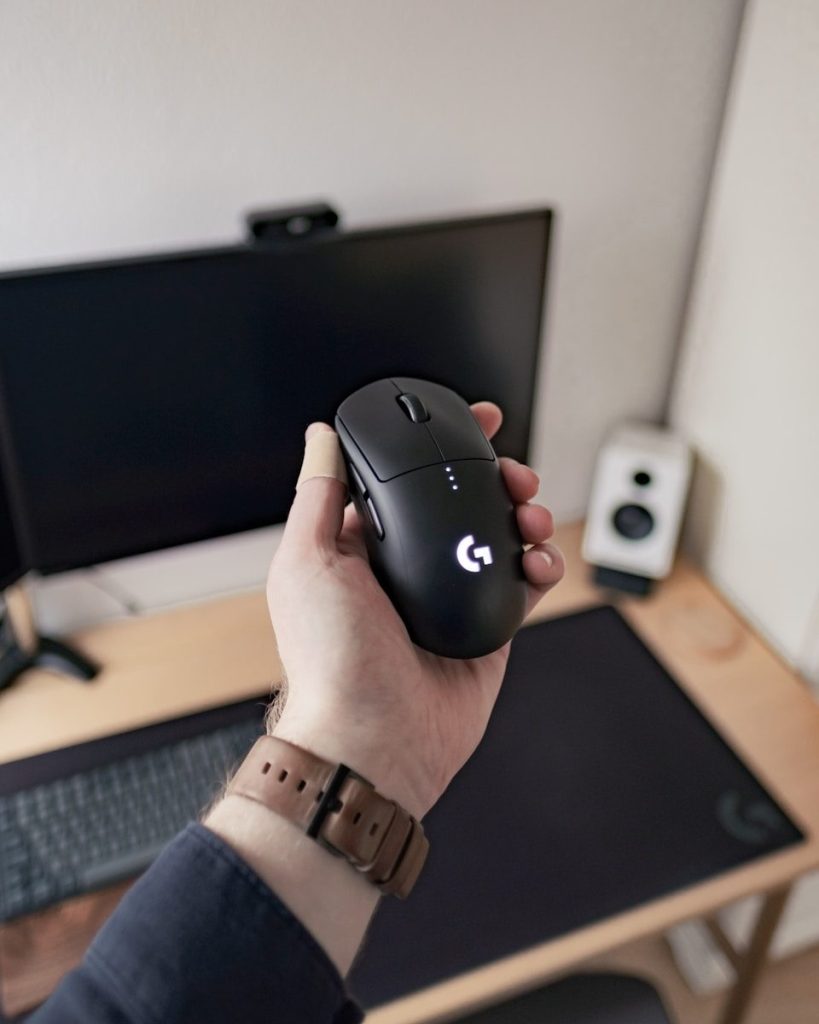
Why is my mouse double clicking on its own?
Before diving into the repairs, it helps to understand the “why.” Usually, the culprit is one of three things:
- Software Settings: Your computer might be set to a double-click speed that is too sensitive for your natural rhythm.
- Static Charge: Wireless and wired mice can build up static electricity in the copper leaf spring of the switch, causing “phantom” signals.
- Physical Wear: The internal microswitch has a tiny metal tension spring. Over time, this metal wears down or collects dust, leading to “chatter”—where a single press creates multiple electrical contacts.
1. Adjusting Software Settings
Sometimes the solution is sitting right in your control panel. If your OS thinks two clicks happening in rapid succession is actually one double-click, it might misinterpret your intent.
- On Windows: Go to Settings > Devices > Mouse > Additional Mouse Options. Under the Buttons tab, look for the Double-click speed slider. Try slowing it down and testing it on the folder icon provided in that menu.
- On macOS: Navigate to System Settings > Accessibility > Pointer Control. Here you can find the double-click speed slider to make the timing less demanding.
2. The Static Discharge Trick
If you use a gaming mouse, static buildup is a frequent offender. This is a “zero-cost” fix that works surprisingly often for Logitech and Razer models.
- Turn off the mouse (and remove batteries if wireless).
- Unplug the USB cable or dongle.
- Vigorously click both the left and right buttons repeatedly for 30 to 60 seconds.
- Blow into the gaps around the buttons to introduce a bit of moisture/breath (though compressed air is safer).
- Plug it back in and test.
3. Cleaning the Internal Switch
Dust and hair are the enemies of precision electronics. A tiny speck of debris inside the housing can prevent the spring from snapping back correctly.
Using a can of compressed air, aim the straw into the small gaps around the mouse buttons. Give it several short bursts. This can often dislodge particles that are interfering with the mechanical “click.” According to a guide on iFixit, many mechanical failures are actually just hygiene issues within the switch housing.
4. Update or Reinstall Drivers
Software glitches can mimic hardware failure. To ensure your OS is communicating correctly with your mouse:
- Right-click the Start button and select Device Manager.
- Expand the Mice and other pointing devices section.
- Right-click your mouse and select Uninstall device.
- Unplug the mouse and plug it back in; Windows will automatically reinstall the driver.
5. Using Debounce Software
If the hardware is slightly failing but you aren’t ready to open it up, “Debounce” software is a lifesaver. Mechanical switches have a “bounce” period where the signal flickers. Quality firmware filters this out. If your mouse firmware is failing, third-party apps like MouseFix or Left Click Fix can ignore any second click that happens within a few milliseconds of the first.
Troubleshooting Hardware: A Quick Comparison
| Fix Method | Difficulty | Effectiveness | Cost |
| Settings Adjustment | Very Low | Low (Software only) | Free |
| Compressed Air | Low | Medium | $5 |
| Firmware Update | Low | Medium | Free |
| Switch Replacement | High | Very High | $10 + Tools |
How to fix mouse double clicking by opening the device
If you are comfortable with a screwdriver and possibly a soldering iron, you can go deeper.
Steps to repair the internal spring:
- Remove the skates: Use a hair dryer to soften the adhesive on the plastic feet (skates) of the mouse. Peeling these back usually reveals the screws.
- Open the shell: Carefully lift the top shell. Watch out for thin ribbon cables connecting the side buttons.
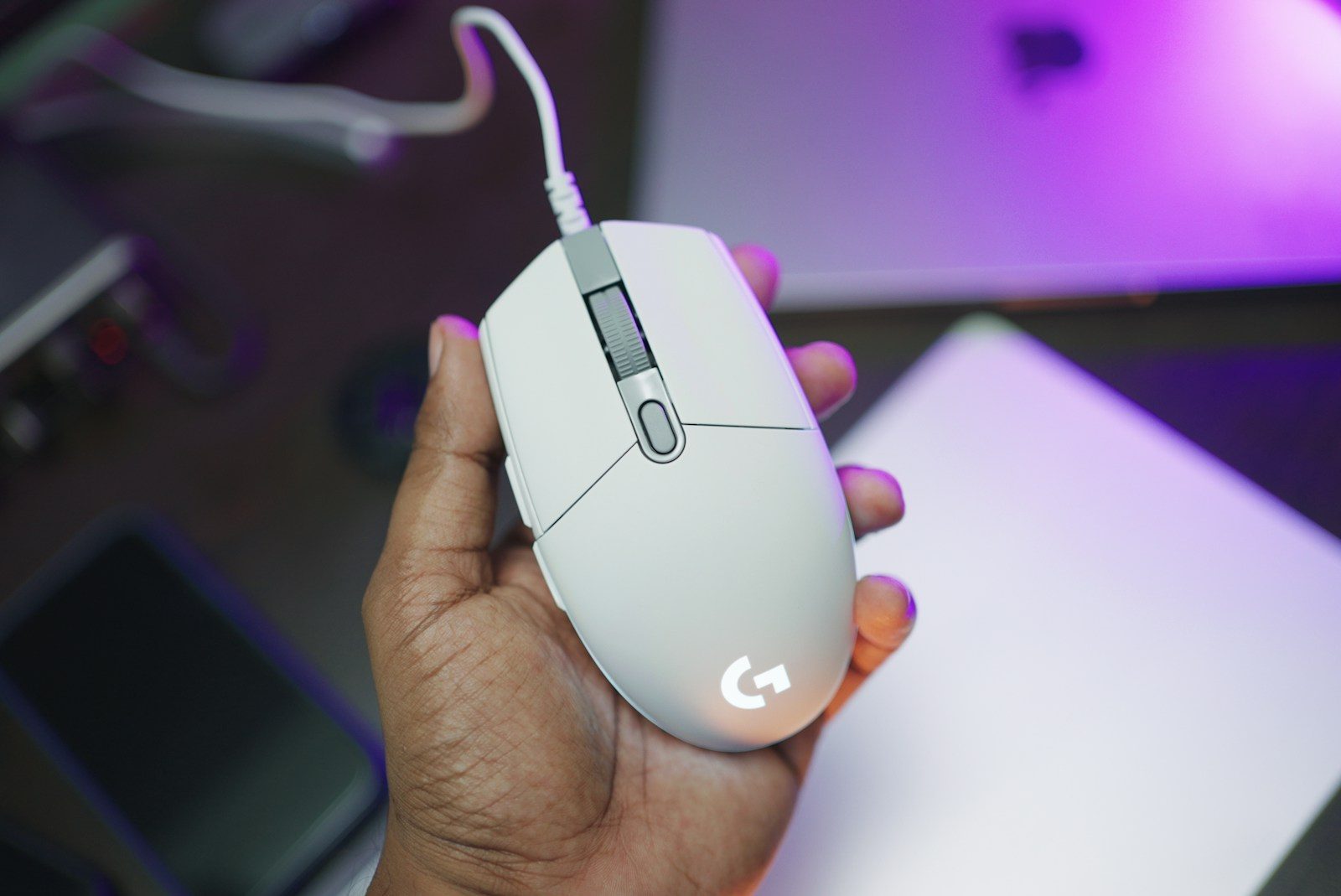
- Locate the microswitch: This is usually a small black rectangular box with a tiny white or red button on top.
- The “WD-40” Method (Controversial): Some enthusiasts use a tiny drop of Contact Cleaner (like DeoxIT) inside the switch. Do not use standard WD-40; use an electronic contact cleaner.
- Tension the spring: If you are feeling brave, you can pop the cap off the microswitch and slightly bend the copper leaf spring back into a curved shape to restore tension.
Common Mistakes to Avoid
- Applying too much force: Clicking harder will not fix a failing switch; it will only accelerate the wear on the plastic plunger.
- Using water: Never use liquid cleaners inside the mouse unless it is 99% Isopropyl Alcohol.
- Forgetting the Warranty: Most high-end mice from brands like Logitech or SteelSeries have 1-2 year warranties. Opening the shell usually voids this. Always check your warranty status on the manufacturer’s support page before reaching for a screwdriver.
Pros and Cons of Manual Repair
Pros:
- Saves money on expensive gaming peripherals.
- Reduces electronic waste.
- Customization (you can solder in “silent” or “tactile” switches of your choice).
Cons:
- High risk of breaking plastic clips or ribbon cables.
- Requires steady hands and specific tools (Torx screwdrivers).
- Can be time-consuming.
FAQ
Can a mousepad cause double clicking?
No, a mousepad affects tracking (the movement of the cursor), but it cannot trigger the internal electrical switch of a button. If your cursor is jumping, check the pad; if it’s clicking twice, check the mouse.
Is double clicking always a hardware failure?
Not always. Features like “Single-click to open an item” in Windows Folder Options can make it feel like your mouse is broken when it’s actually just a setting change.
Does this happen more to gaming mice?
Yes, because gaming mice often use “mechanical” switches designed for speed. High-performance switches, particularly older OMRON models, are known to develop the “double-click” issue over time due to low voltage requirements.
Will a firmware update fix my mouse?
Sometimes. Manufacturers like Razer frequently release firmware updates to adjust the “debounce time,” which is essentially a software patch to hide hardware clicking issues.
Can I use rubbing alcohol to fix it?
Yes, but only high-percentage Isopropyl Alcohol (90% or higher). A small drop on the switch followed by repeated clicking can sometimes clear out oxidation.
Final Thoughts on Hardware Longevity
Learning how to fix mouse double clicking is a rite of passage for many power users. While it is annoying, it doesn’t always signal the end of your device’s life. By starting with software tweaks and moving toward physical cleaning, you can usually squeeze another year or two out of your favorite pointer. If all else fails, look into mice with optical switches. These use a beam of light rather than metal contact to register a click, making them virtually immune to the double-clicking phenomenon.