
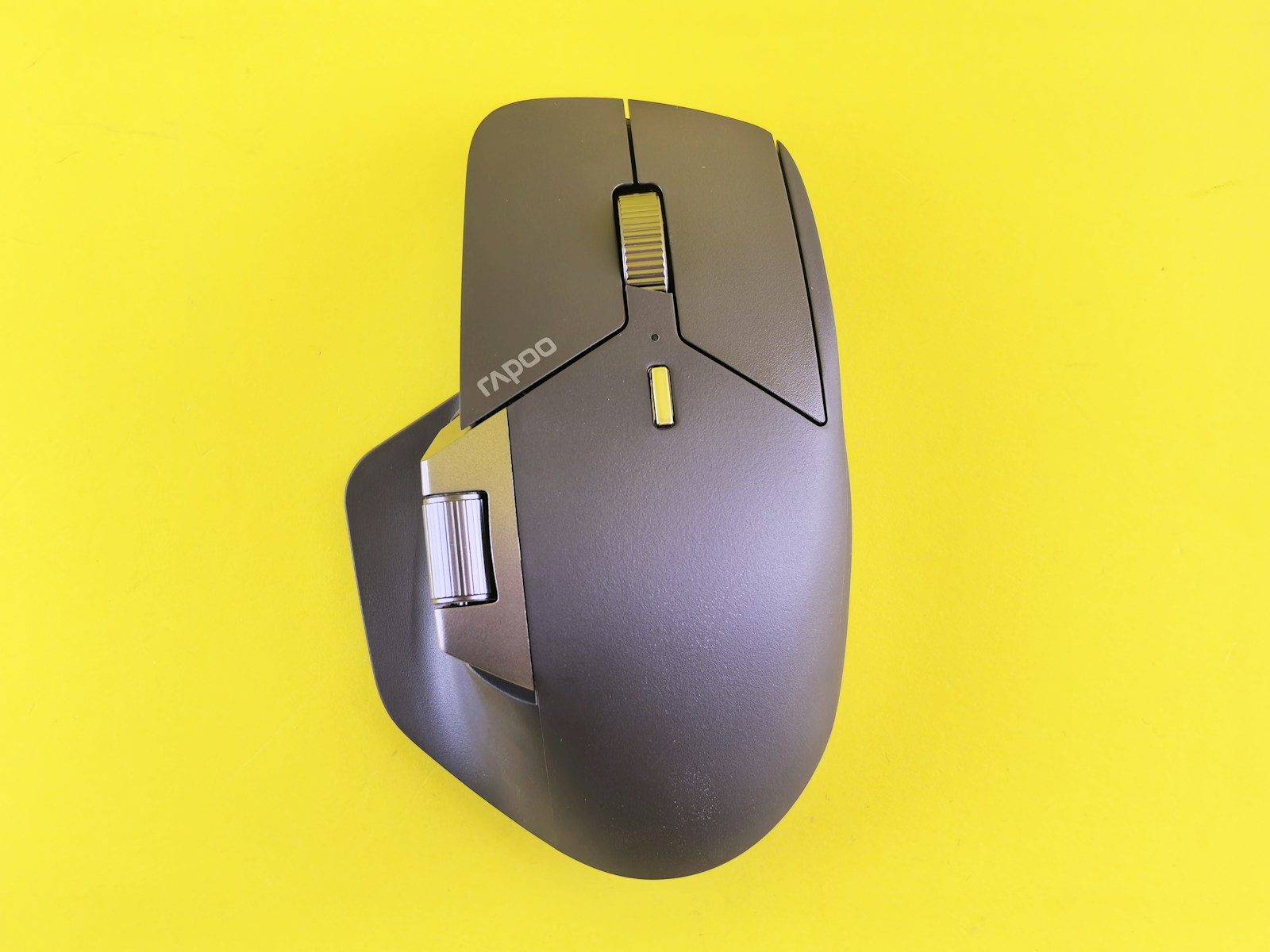
How to Fix Mouse Double Clicking Fast
Key Takeaways: To fix mouse double clicking, start by adjusting the “Double-click speed” in your Windows or macOS settings. If that fails, try blowing compressed air into the gap under the clicker or updating your mouse drivers. For hardware issues, a worn-out microswitch may require a quick “static discharge” or a full replacement.
It is one of the most frustrating tech glitches out there: you click once to select a file, and your computer acts like you’ve hammered the button twice, opening three windows you didn’t want. Learning how to fix mouse double clicking is a rite of passage for many gamers and office workers alike. Before you get frustrated and toss your expensive peripheral into the bin, you should know that this is usually a solvable problem. Whether it’s a software setting that went rogue or a tiny piece of dust trapped in the spring, most mice can be brought back to life with a few simple steps.
Understanding Why Your Mouse Is Misbehaving
Before diving into the repairs, it helps to understand what is actually happening inside that plastic shell. Most modern mice use a mechanical microswitch. Inside this switch is a tiny copper leaf spring. When you press down, the spring makes contact and sends a signal to your PC. Over time, that spring can lose its tension, or the contact points can become oxidized or dirty.
Sometimes, the issue isn’t mechanical at all. Operating system updates or conflicting software can change how your PC interprets clicks. If your “double-click speed” is set too low, the computer might be overly sensitive, registering even the slightest vibration as a second input.
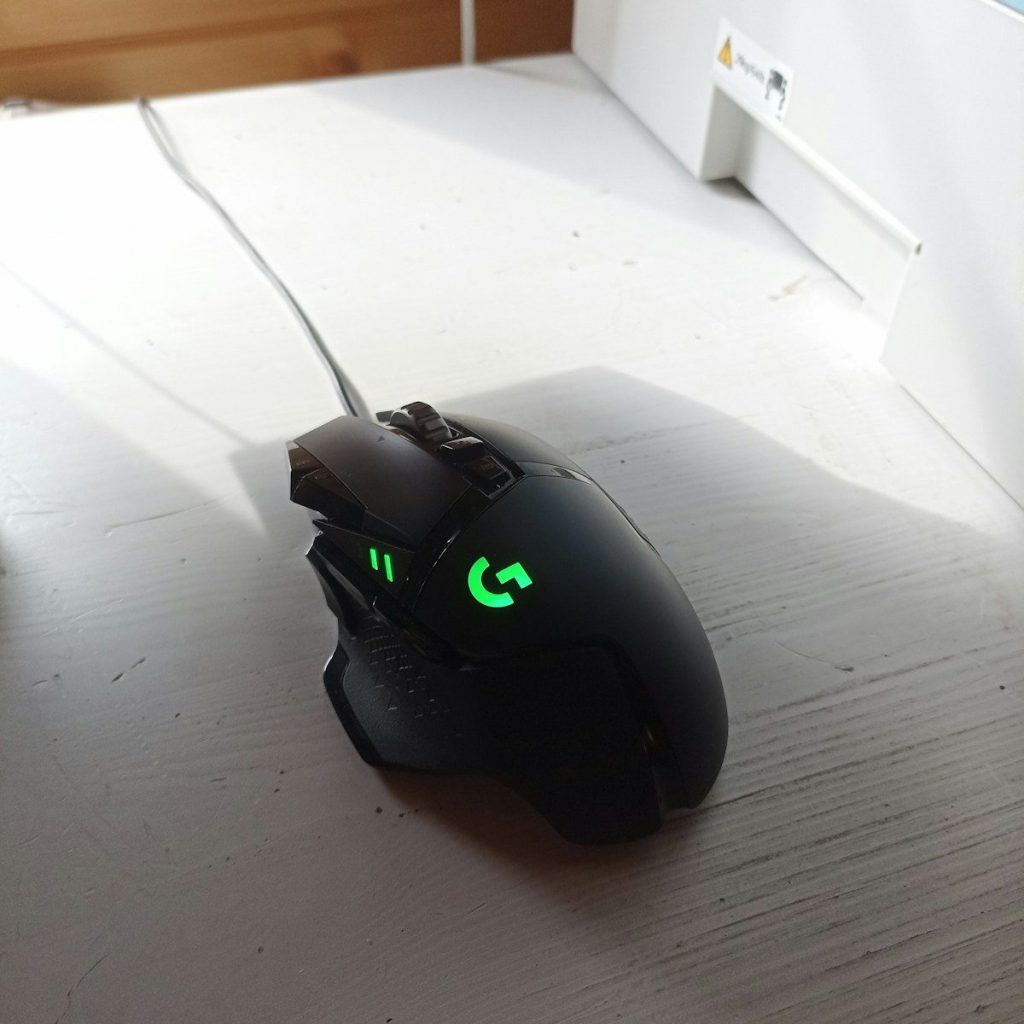
Step 1: Adjust Your Software Settings
The first and easiest way to address how to fix mouse double clicking is through your OS settings. This rules out a “ghost in the machine” before you start taking things apart.
On Windows:
- Open the Control Panel and navigate to Mouse.
- Look for the Buttons tab.
- Find the Double-click speed slider.
- Try moving the slider toward Fast. This requires you to click much quicker for a double-click to register, which can filter out accidental double-signals from a faulty switch.
- Click Apply and test it out in the “folder” icon provided in the menu.
On macOS:
- Go to System Settings.
- Navigate to Accessibility and then Pointer Control.
- Adjust the Double-click speed slider to see if the behavior improves.
Step 2: The Static Charge Trick
This sounds like tech voodoo, but it is a legitimate fix for many wireless and optical mice. Static electricity can build up on the internal components, causing the sensor to misfire.
- Turn off your mouse and remove the batteries (or unplug it if it’s wired).
- Rapidly click both the left and right buttons for about 30 to 60 seconds.
- Breathe into the gaps of the buttons to introduce a tiny bit of moisture (this helps dissipate static).
- Plug it back in and see if the double-clicking persists.
Step 3: Cleaning with Compressed Air
Dust is the enemy of electronics. A single hair or a speck of skin cells can get wedged between the plastic button and the microswitch, causing the switch to “bounce.”
Grab a can of compressed air and stick the straw into the seam between the clicking button and the mouse body. Give it a few short, sharp bursts while clicking the button repeatedly. This often dislodges the debris that causes the mechanical malfunction. If you want to be more thorough, use a drop of high-percentage isopropyl alcohol (90% or higher) on a Q-tip and rub it around the edges of the button to break down any sticky residue from snacks or drinks consumed at your desk.
Comparing Fix Methods: Quick Look
| Method | Effort Level | Success Rate | Best For |
| Software Adjustment | Very Low | Low-Medium | Sensitivity issues |
| Compressed Air | Low | Medium | Dust and debris |
| Static Discharge | Very Low | Medium | Wireless/Logic errors |
| Switch Replacement | High | Very High | Hardware wear and tear |
Step 4: Updating or Reinstalling Drivers
Occasionally, your mouse driver becomes corrupted. This is particularly common if you use specialized software for gaming mice (like Razer Synapse or Logitech G Hub).
- Right-click the Start button and select Device Manager.
- Expand Mice and other pointing devices.
- Right-click your mouse and select Uninstall device.
- Unplug the mouse and plug it back in. Windows will automatically reinstall the generic driver.
If you are using a high-end gaming mouse, check the manufacturer’s website for a firmware update. Companies often release patches specifically for “click debounce” issues, which is essentially a digital way of teaching the mouse to ignore accidental double clicks. According to the Microsoft Support Page, keeping your drivers updated is the first line of defense against hardware communication errors.
Advanced Fix: Opening the Mouse
If you are comfortable with a screwdriver, you can often fix the physical switch. Most mice have screws hidden under the “skates” (the smooth pads on the bottom).
- Remove the skates carefully and unscrew the housing.
- Locate the microswitch (usually a small rectangular box, often branded Omron or Kailh).
- You can sometimes pop the tiny plastic cap off the switch itself to reveal the copper spring inside.
- If the spring is bent, you can very gently flatten it back into its original shape with a needle.
Caution: This will likely void your warranty. If your mouse is still under its one-year or two-year coverage, it is better to contact the manufacturer for a replacement rather than performing surgery yourself.
Common Mistakes When Fixing a Mouse
While trying to figure out how to fix mouse double clicking, many people accidentally make the problem worse. Avoid these pitfalls:
- Using too much liquid: Never pour rubbing alcohol or water directly into the mouse. It can short out the circuit board. Always use a damp Q-tip.
- Pressing too hard: If the click isn’t registering, slamming the button down will only bend the copper spring further, making it impossible to repair.
- Ignoring the surface: Sometimes, what looks like a double-click is actually your mouse sensor “skipping” on a reflective surface. Try using a mousepad before you blame the switch.
Hardware vs. Software: Which is it?
How do you know if the problem is your computer or the device itself? The simplest test is to plug the mouse into a different computer or a laptop. If the double-clicking follows the mouse to the new device, you have a hardware issue. If the mouse works perfectly on a different PC, the problem lies in your software settings or a background program on your original computer.
Pros and Cons of DIY Repair
Pros:
- Saves money (high-end mice can cost over $100).
- Reduces electronic waste.
- Can be done in under 10 minutes for software fixes.
Cons:
- Risk of breaking the delicate internal plastic clips.
- Voiding the manufacturer warranty.
- Small parts are very easy to lose.
For those using Logitech devices specifically, the Logitech Support Site provides specific troubleshooting steps for their G-series mice, which are famously susceptible to this issue due to their high-sensitivity switches.
FAQ: Solving Mouse Click Issues
Can a mousepad cause double clicking?
No, a mousepad affects the tracking of the cursor (movement), but it doesn’t affect the physical clicking mechanism. If your cursor is jumping around, check the pad; if it’s double-clicking, check the switch.
Is it worth fixing a cheap office mouse?
Usually, no. If you are using a $10 basic mouse, the cost of a can of compressed air or the time spent on repair might outweigh the cost of a new one. However, for gaming mice, repair is almost always the better route.
What is “debounce time” in gaming mice?
Debounce time is a setting in many gaming mouse apps that tells the software to wait a few milliseconds before allowing another click. Increasing this can solve double-clicking instantly.
Why do new mice double click?
Sometimes “lemon” units leave the factory with defective switches, but often it’s a voltage issue. Some modern mice run at very low voltages to save battery, which can lead to “signal noise” that the PC interprets as multiple clicks.
Does “dragging” your finger help?
Some users find that “drag clicking” or sliding their finger across the button clears some static, but this is a temporary fix at best.
Moving Forward with Your Setup
Knowing how to fix mouse double clicking can save you a lot of money and frustration. Most of the time, it is simply a matter of clearing out some dust or tweaking a slider in your settings. If you’ve tried the software fixes and the compressed air trick with no luck, it might be time to look at your warranty status.